
Short answer: Choose Medal, Steam Game Recording, Xbox Game Bar, or OBS when the problem is capturing gameplay. Choose Eklipse, StreamLadder ClipGPT, OpusClip, or ZoneClip when the problem is finding and finishing moments already buried in a long VOD. These are different jobs, and the most reliable creator workflow may use one tool from each group.
There is no honest single winner for “gaming clipping software.” A replay buffer that saves the last 60 seconds is not solving the same problem as an AI system that reviews a three-hour recording. A browser editor that converts an existing Twitch clip to 9:16 is another category again.
This guide compares eight representative products by their starting point, automation, editing path, media location, and most important limitation. It does not rank highlight accuracy because we have not yet completed a controlled same-VOD test across every product.
Best tools at a glance
| Tool | Best for | Starting point | Moment discovery | Processing model | Honest limitation |
|---|---|---|---|---|---|
| Medal | Best all-around gameplay capture and instant replay | A game running on Windows | Hotkeys, voice clipping, bookmarks, and event detection for supported games | Local capture with optional cloud sharing | Strongest before or during the moment; not primarily a long-VOD story editor |
| Steam Game Recording | Best built-in option for Steam players | A game launched through Steam | Manual markers, timeline events, and clip suggestions | Local | Designed for capture and clipping, not AI ranking or social packaging |
| Xbox Game Bar | Simplest built-in Windows recording | A Windows game or app | Manual recording controls | Local | Minimal discovery, editing, and publishing automation |
| OBS Studio | Best configurable local recording setup | A configured scene or game capture | Manual hotkeys and replay buffer | Local | Flexible capture requires setup; it does not rank the best moments for you |
| Eklipse | Best established gaming-first cloud auto-clipper | A connected Twitch, YouTube, or Kick VOD | Game-aware whole-VOD analysis and ranked clips | Cloud | AI clip generation is paid, and the original workflow is cloud-first |
| StreamLadder ClipGPT | Best stream-VOD-to-social browser workflow | A Twitch or Kick VOD link, or a YouTube stream | AI highlights and virality scores | Cloud | Convenience depends on importing the stream into a hosted workflow |
| OpusClip | Best broad long-video repurposing tool with a gameplay layout | Links or uploaded local files | Multimodal clipping across many video genres | Cloud | A general-purpose repurposing system, not a gaming-only workflow |
| ZoneClip | Best local-first long-recording-to-social workflow | A local gaming recording or supported video URL | Multiple scenes and ranked clip candidates | Free Local AI with optional cloud analysis | Windows x64 and macOS Apple silicon; URL import depends on source availability and access |
How we evaluated
We separated the workflow into five jobs. A product gets credit only for the job its current public documentation actually supports.
- Capture: Can it reliably preserve gameplay before or after the creator notices a moment?
- Discover: Can it review a long session and return several useful candidates?
- Explain: Can the creator inspect time ranges, context, or scores instead of accepting a black-box result?
- Finish: Can it reframe gameplay and facecam, correct captions, and produce a publishable vertical clip?
- Distribute: Can it export cleanly or schedule finished clips to short-form platforms?
The external product facts below were checked against official public pages on August 23, 2026. Product pages can change. This guide is based on current documentation and product evidence—not a paid placement and not a claim that every competitor has been tested with the same source yet.
Best capture and replay tools
Medal — best all-around capture and instant replay
Medal is the most complete choice here when the main risk is failing to capture a moment at all. Its current Windows workflow covers hotkey clipping, long-session recording, bookmarks, voice clipping, and automatic event detection for supported games. Clips can remain on the device or move into Medal's sharing and cloud workflow.
Choose Medal when you want software running while you play and expect the saved moment to be short. Its advantage is the tight loop from “that just happened” to a clip in the library. Its limitation is equally clear: saving the recent moment is not the same as finding several complete stories across an existing multi-hour recording.
Steam Game Recording — best built-in choice for Steam players
Steam Game Recording can record in the background or on demand, preserve manual markers, expose game-provided timeline events, and export selected ranges as video files. It is a strong no-extra-account starting point when most of your library comes from Steam.
Use it when local capture and a searchable session timeline are enough. Plan on another editor or AI clipper when the output needs automatic ranking, 9:16 gameplay composition, captions, and a repeatable publishing workflow.
Xbox Game Bar — best for zero-setup Windows recording
Xbox Game Bar is already present on supported Windows systems and can record a game or app directly to an MP4 in the local Captures folder. It is the simplest option in this list for someone who only needs a file.
That simplicity is also the boundary: Game Bar is a recorder, not a system for reviewing a long VOD, ranking highlights, composing facecam layouts, or planning social posts.
OBS Studio — best configurable local recorder
OBS Studio remains the flexible choice for creators who care about scene composition, separate sources, encoder settings, audio routing, recording quality, and a replay buffer. It is especially useful when the recording setup itself needs to be customized.
OBS gives you control, not editorial judgment. A replay-buffer hotkey can preserve a moment, but OBS does not decide which five moments in a long session have the clearest setup, payoff, and reaction.
Best AI VOD clippers
Eklipse — best established gaming-first cloud workflow
Eklipse's auto clipper connects to Twitch, YouTube, or Kick, scans the finished VOD, ranks moments, reframes them to vertical, and adds editable captions. Its strongest advantage is maturity around gaming and stream ingestion: the creator can connect a channel rather than manage local source files.
Choose Eklipse when cloud convenience, stream-platform import, broad gaming coverage, and a public product matter more than keeping the original workflow local. Its official page currently states that account creation is free but finished AI clip generation runs on paid plans.
StreamLadder ClipGPT — best VOD-link-to-social browser workflow
StreamLadder ClipGPT accepts Twitch and Kick VOD links or a YouTube stream upload, finds highlights, assigns virality scores, applies vertical cropping and captions, and hands selected moments to its editor and publisher. It is a coherent cloud workflow for creators already organizing content around stream URLs.
Choose it when you want import, ranked moments, editing, and multi-platform publishing in a mature browser product. Treat its virality score as a prioritization signal—not a guarantee of views—and compare the actual correction work required by your games and stream layout.
OpusClip — best general-purpose long-video repurposing option
OpusClip accepts multiple link sources and local uploads, generates short clips, provides browser editing, and supports publishing. Its gameplay layout gives creators a fixed gameplay-and-speaker composition alongside layouts for interviews, panels, and screen sharing.
Choose OpusClip when gaming is one part of a wider content library and the same team also repurposes podcasts, interviews, webinars, or talking-head videos. A general-purpose model can be valuable, but you should test whether it preserves the game-specific setup and aftermath that make your own clips understandable.
ZoneClip — best local-first long-recording workflow
ZoneClip accepts a local recording or a supported video URL, groups the imported video into scenes, and proposes multiple clip candidates with time ranges, context, and relative scores. Selected moments move into a gameplay editor with facecam layouts, editable captions, templates, and local final rendering. Publishing queues, connected accounts, a calendar, and supported analytics are part of the current workflow.
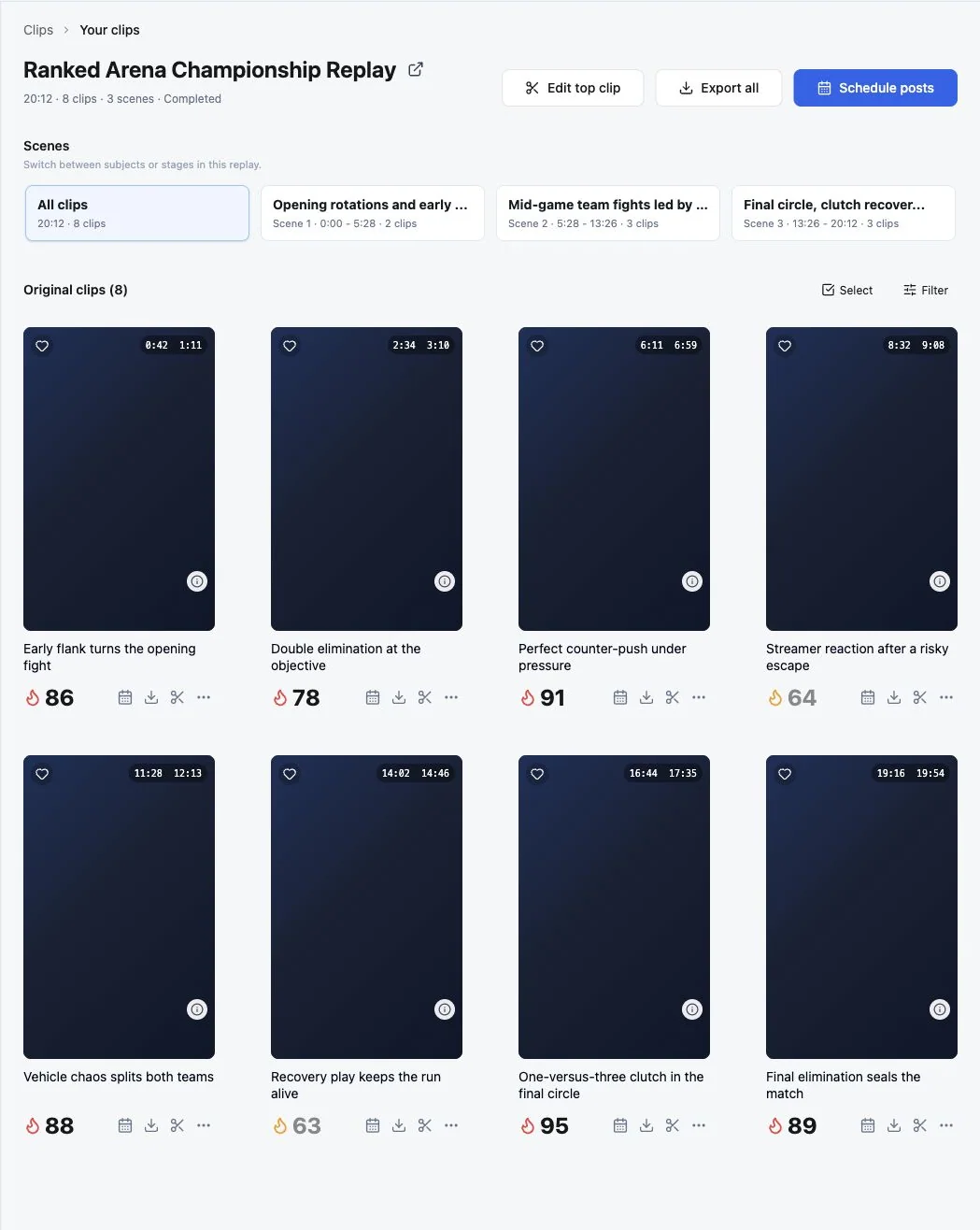
ZoneClip Free is designed as a permanent $0 plan with no watermark. The full-quality original and final render stay on the creator's device; analysis can use a local model, a user-selected provider, or an optional remote provider. Read the exact local-first processing boundaries before treating it as fully offline.
ZoneClip is available for Windows x64 and macOS on Apple silicon. URL import depends on the source site's availability and access restrictions; it does not mean every URL can be downloaded or that live streams are continuously monitored. Use recordings you own or have permission to process. URL downloads and publishing require internet access, while Local AI processing can run offline once the source video and models are downloaded.
What to choose
You keep missing moments while playing
Start with Medal. Try Steam Game Recording if you mainly play through Steam, Xbox Game Bar if you want the simplest Windows recorder, or OBS when you need a customized recording stack.
You already have long Twitch, Kick, or YouTube VODs
Start with Eklipse for a gaming-first connected-channel workflow or StreamLadder ClipGPT for VOD-link import, ranked moments, browser editing, and publishing.
You repurpose gaming plus podcasts, interviews, and webinars
Start with OpusClip. Its broad source support and general-purpose editing model make more sense when one account has to serve several content types.
You keep high-quality recordings on your PC
Consider ZoneClip when local media, inspectable candidates, gameplay-and-facecam finishing, and a permanent no-watermark Free path matter. Verify that your current game and source format work well before making it part of a production schedule.
You want the most reliable end-to-end stack
Use two layers. Capture with Medal, Steam, Game Bar, or OBS. Then send the resulting local file or stream VOD into the AI clipping and finishing tool that performs best on your real footage.
Run a fair test
Do not compare landing-page feature counts. Use one owned or authorized recording and score the finished workflow.
- Use a 60–120 minute session containing quiet setup, several ordinary fights, one clear payoff, creator reaction, and downtime.
- Set the same target: three vertical clips, 30–60 seconds each, with readable captions.
- Record the number of useful candidates before manual repair.
- Check whether setup, action, payoff, and reaction remain understandable.
- Measure correction time for boundaries, gameplay framing, facecam placement, captions, and dead air.
- Compare upload time, analysis time, export resolution, watermark, and time to the first publishable clip.
- Keep the untouched exports and settings so another reviewer can reproduce the result.
Until that test is complete, claims such as “best AI,” “most accurate,” and “highest virality” are marketing positions—not comparative evidence.
Current verdict
The strongest gaming workflow in 2026 is not one universal app. It is a deliberate choice between two layers:
- Capture and replay: Medal is the most complete starting point; Steam, Game Bar, and OBS cover simpler or more configurable local recording needs.
- AI VOD clipping and social finishing: Eklipse and StreamLadder are mature gaming/stream cloud workflows, OpusClip is the broad repurposing option, and ZoneClip is the local-first option available as a official desktop release.
For ZoneClip, this is also the clearest product boundary: it does not replace a gameplay recorder. Import a local recording or a supported video URL, then use the free Local AI workflow for moment selection, editing, local rendering, and publishing without a subscription. Cloud analysis is optional.
Official sources
External facts were reviewed from the following first-party pages on August 23, 2026:
- Medal automatic event detection and clipping
- Medal recording modes and bookmarks
- Medal voice clipping compatibility
- Steam Game Recording overview and FAQ
- Microsoft Xbox Game Bar recording guide
- OBS Studio overview and Replay Buffer documentation
- Eklipse Auto Clipper
- StreamLadder ClipGPT AI Clipping
- OpusClip introduction
- OpusClip layout and reframing guide
Continue with the automatic gaming highlights feature, review supported games and current coverage, or read the ZoneClip vs Medal comparison.
Questions about this topic
What is the best free clipping software for gaming?
Medal is the strongest free starting point when you need gameplay capture, instant replay, and fast sharing. Steam Game Recording and OBS Studio are strong local capture options. ZoneClip Free is the better fit when you already have a long recording and want AI-assisted moment selection, vertical editing, and local final rendering; a downloadable release is available for Windows x64 and macOS on Apple silicon.
What is the best tool for automatically finding gaming highlights?
Eklipse, StreamLadder ClipGPT, OpusClip, and ZoneClip can all analyze longer footage, but they use different source and processing workflows. Eklipse and StreamLadder are established cloud products for stream VODs; OpusClip is a broad long-video repurposing tool; ZoneClip accepts local gaming recordings or supported video URLs and offers free Local AI analysis with inspectable clip candidates.
Is game recording software the same as an AI gaming clipper?
No. Recording and replay tools preserve a moment while you play. An AI VOD clipper reviews an existing long recording, proposes moments, and may reframe, caption, or package them for social video. Many creators need one tool from each category.
Can AI clip gameplay without uploading the full original video?
It depends on the product. Most browser-based AI clippers use a cloud workflow. ZoneClip is designed to keep the high-quality original and final rendering on the creator's device, while analysis can use a local, custom, or optional remote provider.
How should I compare gaming clipping tools?
Use the same representative recording, target the same output, and measure useful candidates, missed moments, manual repair time, framing, captions, export quality, watermark, and total time to a publishable clip.