What this module is for
Use Projects when you have a long recording and want ZoneClip to organize the source, analyze its content, and give you several moments to review. The result is not one irreversible automatic edit: it is a project containing scenes, candidate clips, time ranges, descriptions, and relative scores.
Create a project
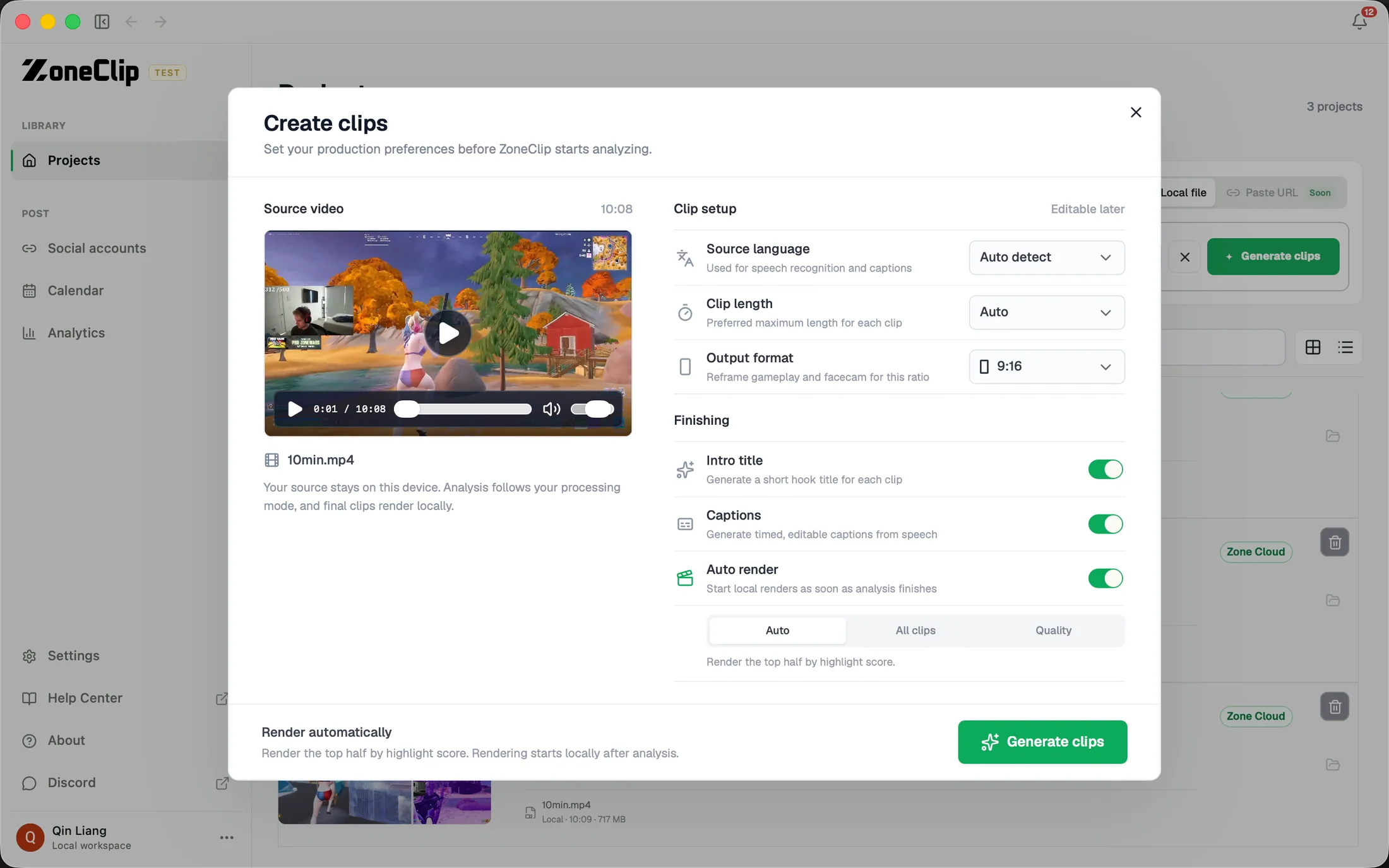
Choose a recording from your computer or paste an HTTPS YouTube, Twitch, direct MP4, or M3U8 URL. URL imports download the source locally and depend on source availability and platform restrictions. Only import media you have permission to use. The full-quality source must stay available on your device for later editing and rendering.
Set language, clip length, output format, Reframe, caption preset and position, intro title, and automatic rendering in the expanded setup area. Clicking Generate clips saves the preferences with the project, remembers them for future projects, and collapses the setup area. Output previews are illustrative before detection; review the actual framing after analysis.
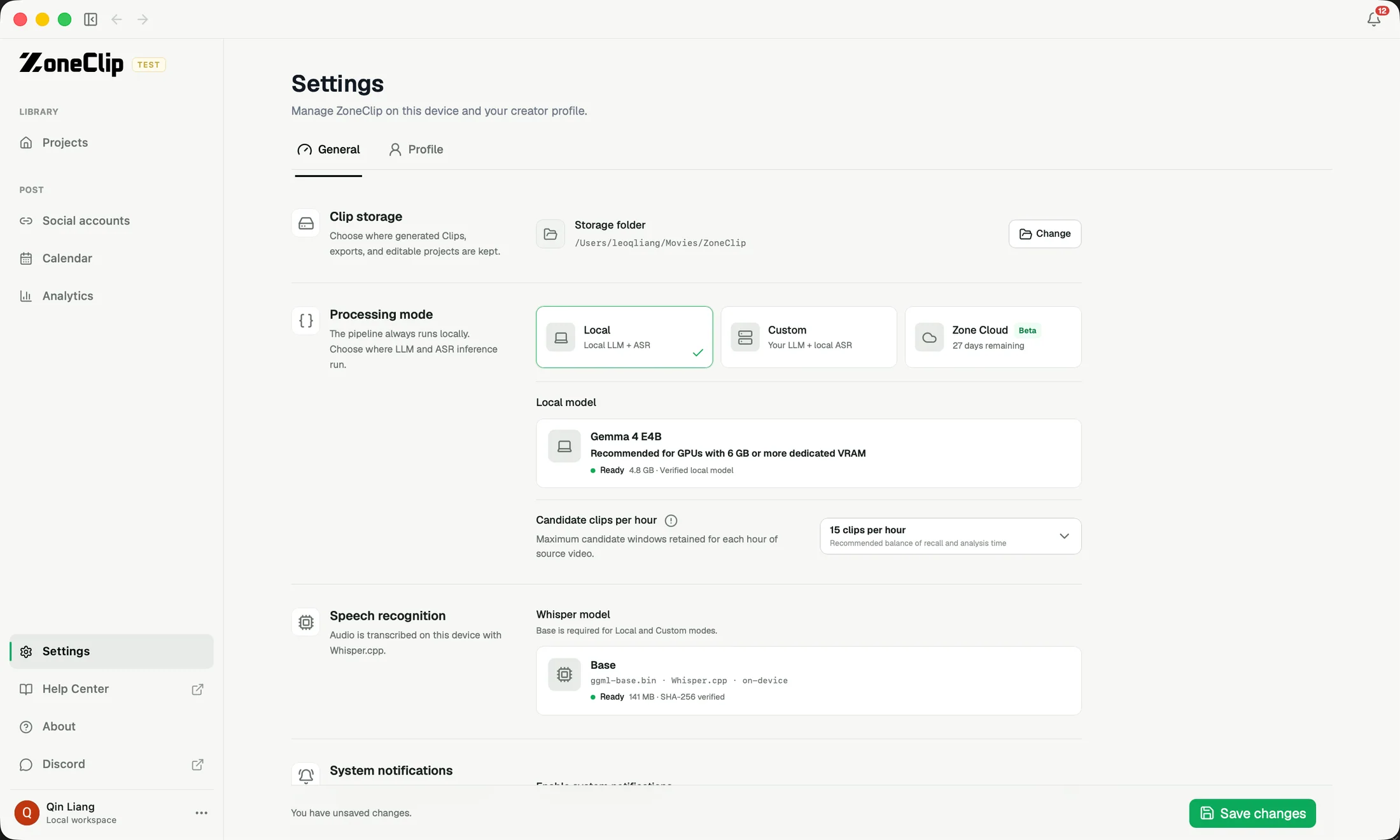
Local analysis is free after model setup. Optional Zone Cloud plans add source-video analysis time; editing, local rendering, exports, and publishing do not use additional analysis minutes.
Follow analysis status
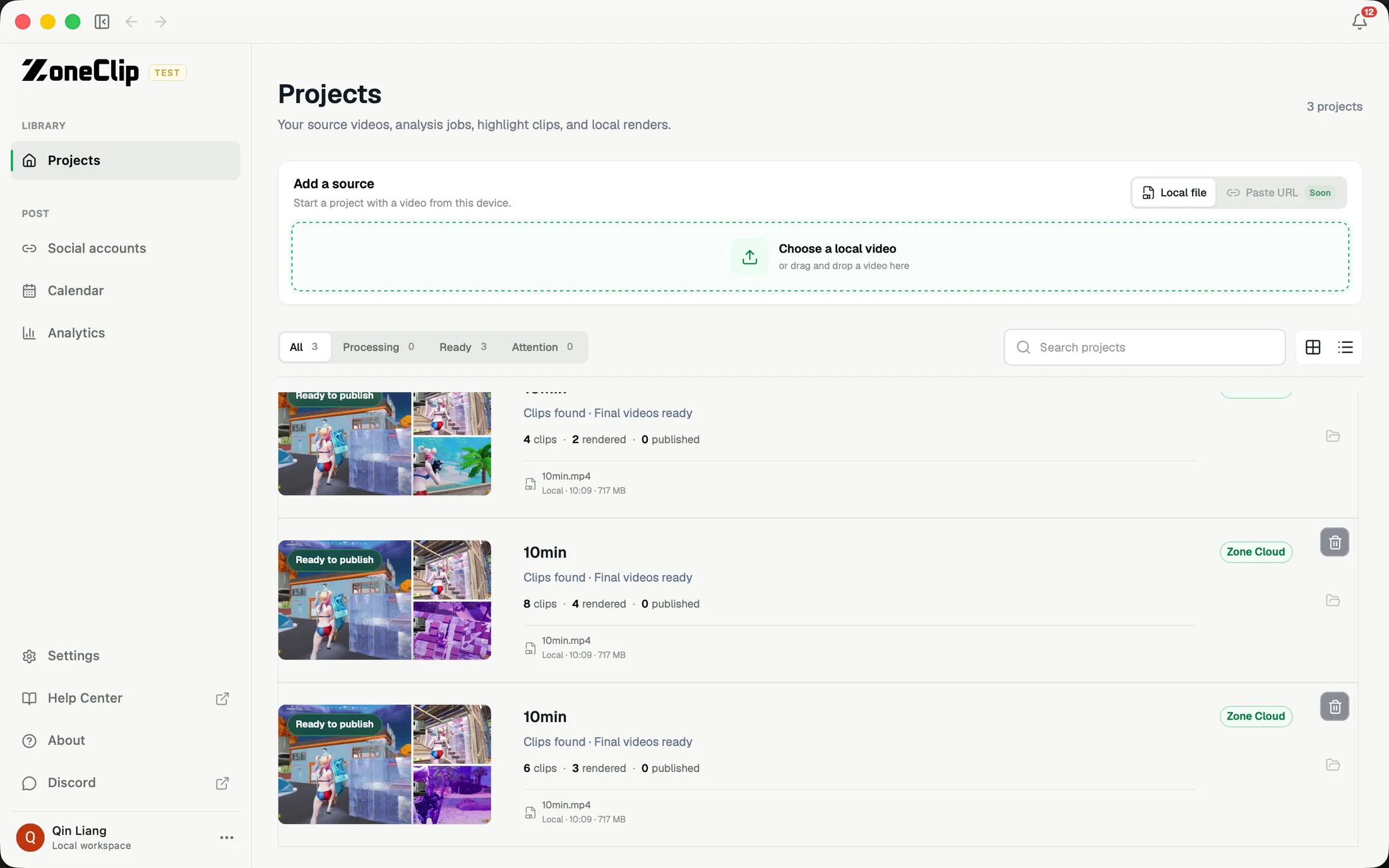
The project library shows which recordings are waiting, processing, ready, or need attention. You can leave a long analysis running and return to the project when candidates are ready instead of keeping the editor open.
Review the project detail
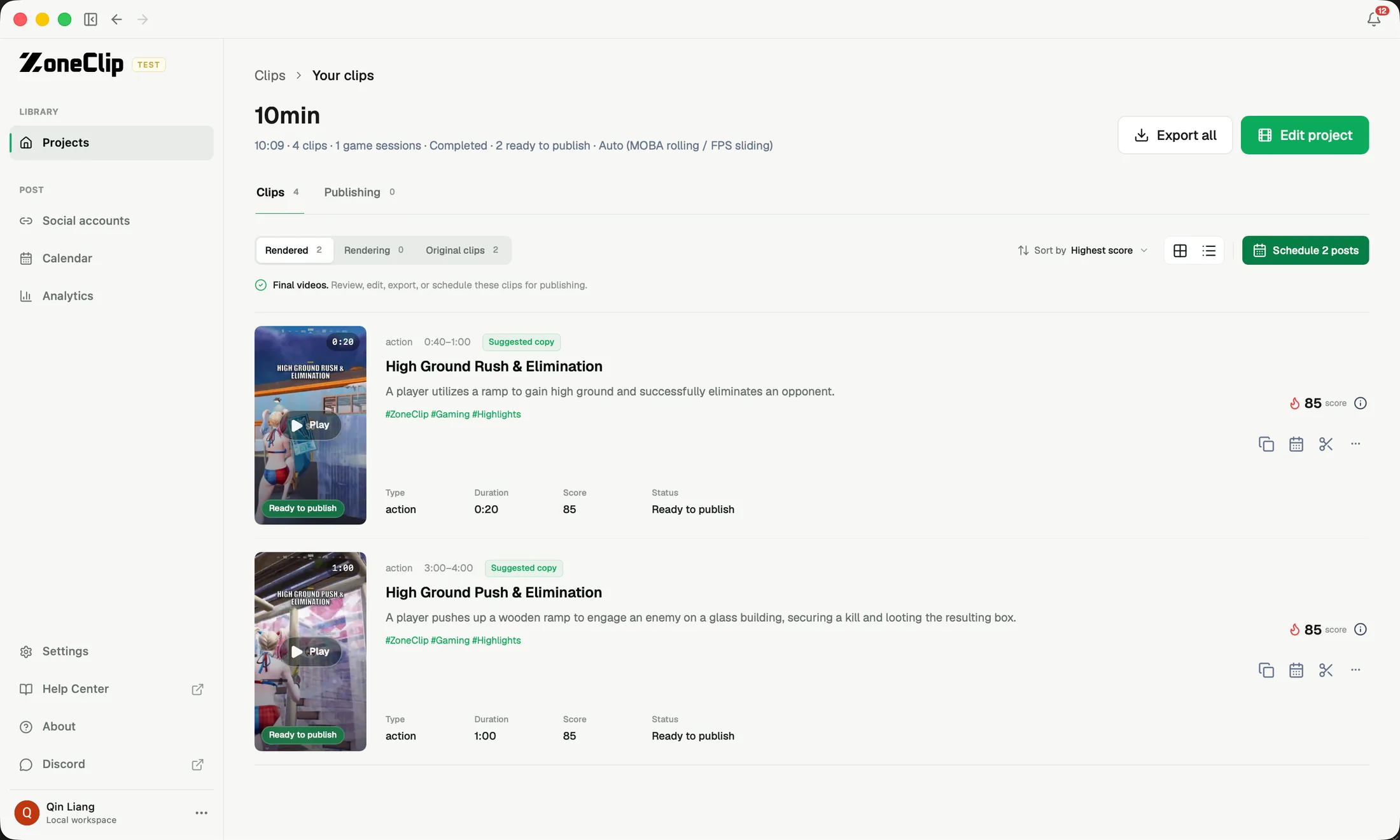
Open a ready project to see the moments ZoneClip found across the recording. Review the source context and the proposed clips before opening the editor. A project may contain several useful outcomes rather than a single “best” timestamp.
Understand each candidate
Each candidate includes a title, time range, event context, and score. Use these together: the score helps order the review, while the title and surrounding context help you decide whether a new viewer can understand the setup, decisive event, and reaction.
Choose what happens next
Open a candidate in the editor when it needs reframing, captions, or timing changes. Select several candidates when you want a batch of clips from one recording. Finished clips can then move into local rendering or the publishing workspace.